









A phone teleprompter keeps your script near the camera while you speak. It can help you remember your structure, but the script and your delivery still need preparation. Start with a short practice video and use the steps below to find settings that feel comfortable for you.
1. Write for speaking, not for reading silently
Choose one message for your video. Write a short opening, the points you need to explain and a clear ending. Use the words you would say to a person in front of you. Break long sentences into smaller ones and give each new thought its own paragraph.
Read the draft aloud before opening the camera. If you stumble over a sentence twice, simplify it. Spell out difficult numbers or names in a way that helps you pronounce them. Keep stage directions brief and separate from the spoken words.
2. Prepare your phone and frame
Place the phone on a stable support, preferably near eye level. Choose portrait or landscape to suit the place where the video will appear. Check the lens, the available light and the background. Keep private documents or notifications out of the shot.
Make a short sound test in the same position you will use for the recording. Listen for fans, traffic and room echo. A teleprompter cannot fix poor audio, and discovering a microphone problem after a long take wastes time.
3. Make the text easy to read
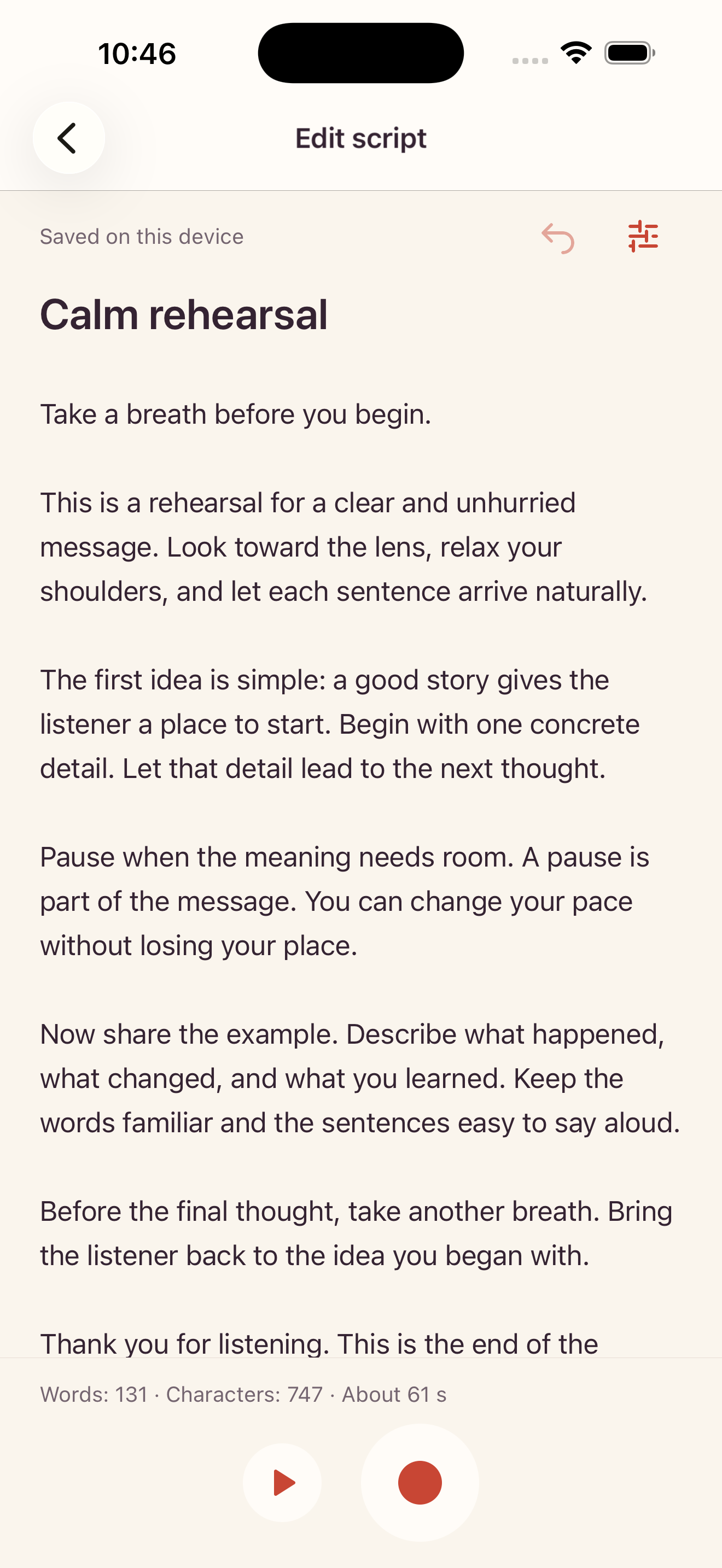
Open your script and adjust the text size for the distance between you and the phone. It should be readable without leaning forward. Use comfortable contrast and leave enough space between lines to follow your place. Keep the reading area close to the lens when your setup allows it.
Teleprompter provides reading controls for preparing your delivery. The example below is an actual product screen with sample text. Settings that work at a desk may feel different when you stand farther from the phone, so test in your final position.
4. Choose a pace that leaves room to breathe
Start with a slow, steady scrolling speed. Read a paragraph aloud and adjust the speed until you can finish sentences without chasing the text. Leave room for pauses after important points. A comfortable pace matters more than fitting as many words as possible into a minute.
If you use a target duration, treat it as a starting point. Rehearse the whole script and shorten the wording if the delivery feels rushed. Fixed-speed scrolling does not follow your voice: pause or adjust it when you need more time.
5. Rehearse before the full take
Run through the opening and one longer paragraph. Look toward the lens naturally rather than tracking every word across the screen. If your eyes move noticeably from side to side, experiment with text size, line length and your distance from the phone.
Use your rehearsal to check meaning as well as timing. Keep normal emphasis and small pauses. If a line sounds stiff, rewrite it in your own words. Memorising the opening sentence can help you begin without immediately searching the screen.
6. Record a short test, then your video
Allow camera and microphone access when the recording app requests them. Check that you are using the intended camera. Record a brief test, stop, and wait until the app has finished saving before opening the result. Confirm that picture, orientation and sound are correct.
For the full take, begin from a known place in your script. If you lose your place, stop safely, review what happened and start again. Avoid changing several reading settings at once; one change at a time makes it easier to tell what helped.
7. Check the saved file before sharing
Play the saved video from beginning to end. Check the first and last words, sound level, framing and any interruptions. Do not assume that a stopped recording is ready to share until the app has finished saving and the file opens successfully.
Teleprompter recordings stay on your device; text synchronisation does not back up your videos. Keep a copy of an important recording before deleting local files. When you are happy with the result, share it using the options available on your phone.
A simple first session
Use a short script, readable text and a comfortable speed. Rehearse once, make a test recording and inspect the saved file. Repeat this small loop before attempting a longer video.
You can prepare your next script in the Teleprompter web editor. Check the mobile app section of our website for the current store availability; a web editor link is not an app installation.